Before you start
The Presenco mobile app is intended for workers. To sign in, you need:
- the phone number registered by your employer in your worker profile;
- the mobile PIN provided by your employer or an administrator.
The administration portal uses an email address and password. Those credentials cannot be used to sign in to the worker mobile app.
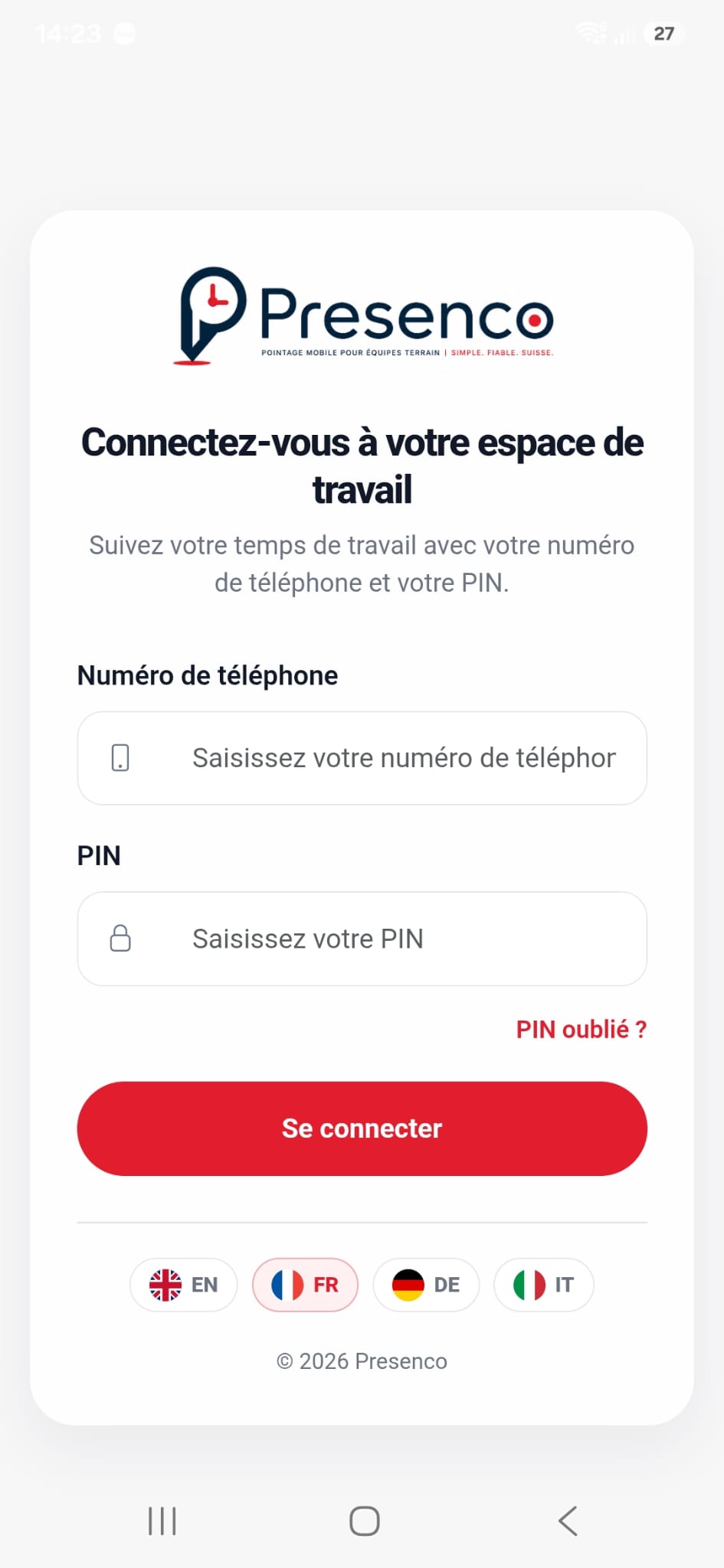
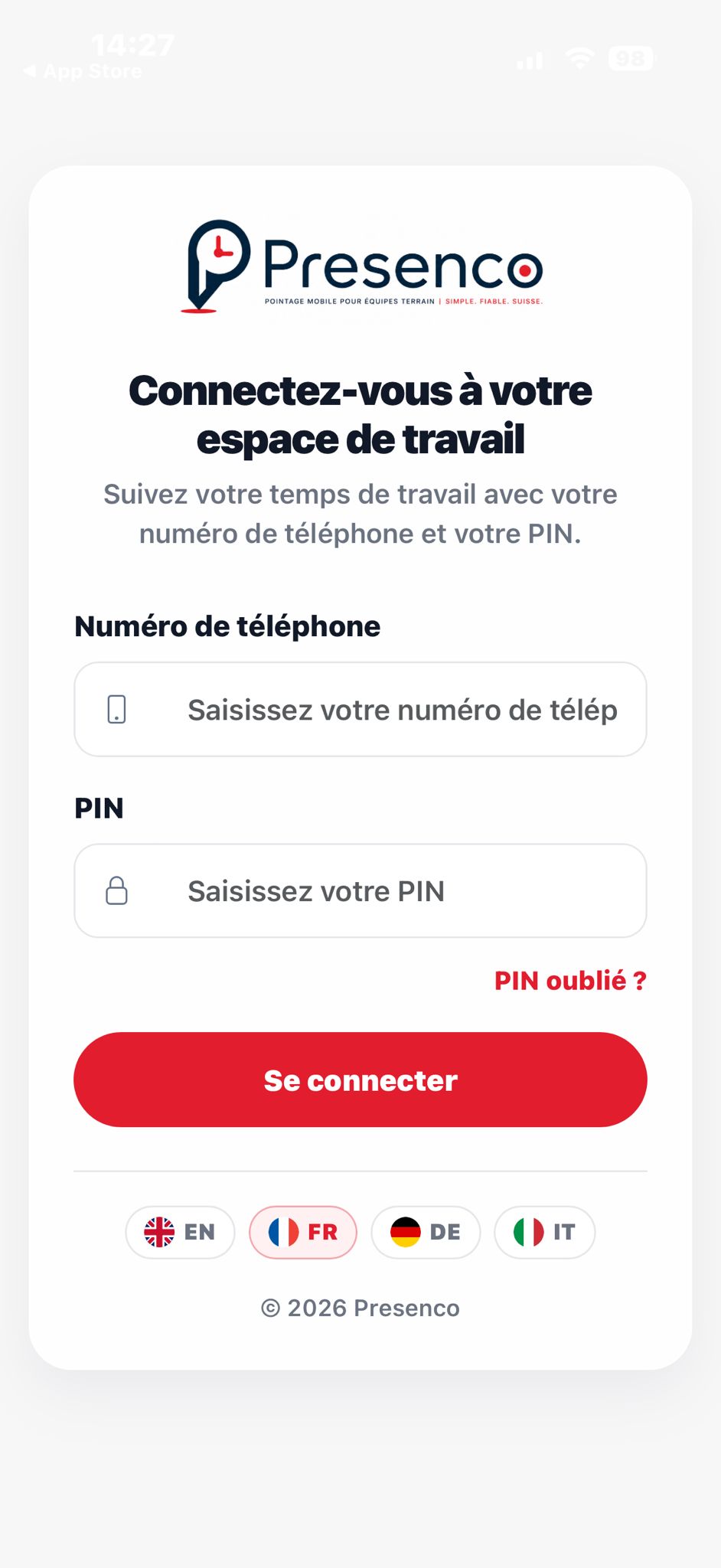
Sign in to Presenco
- Open the Presenco app.
- Select your language if necessary.
- Enter your phone number exactly as it is stored in your worker profile.
- Enter your 4–6 digit mobile PIN.
- Tap Sign in.
- If your phone number is connected to more than one company, select the company for which you want to record time.
If the phone number or PIN is not recognised, ask your employer to verify your details. If you have forgotten the PIN, use Forgot PIN; an administrator must then process your request.
Why Presenco requests your location
Presenco uses your location only during attendance actions, such as starting or ending work or a break. When location checking is enabled for a project, it verifies that you are at the project site.
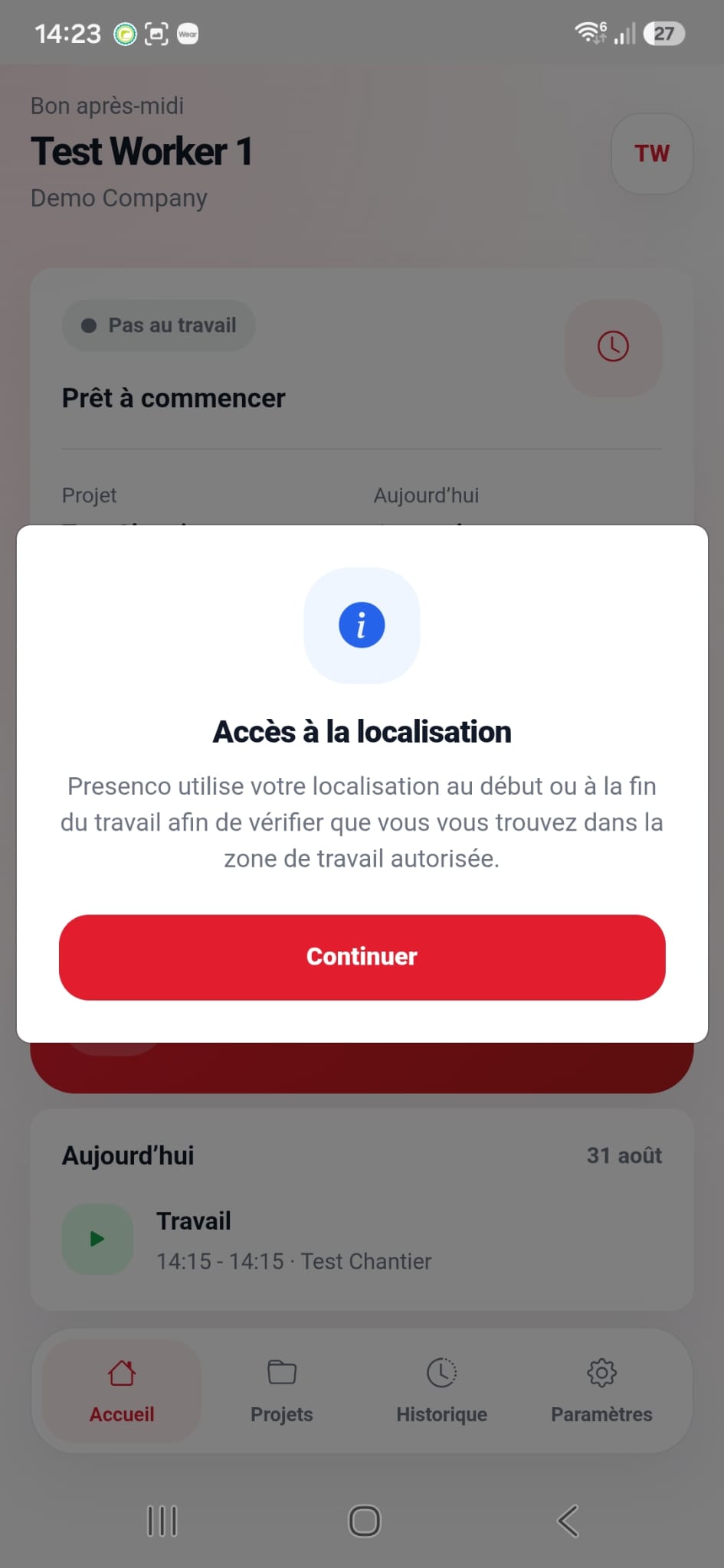
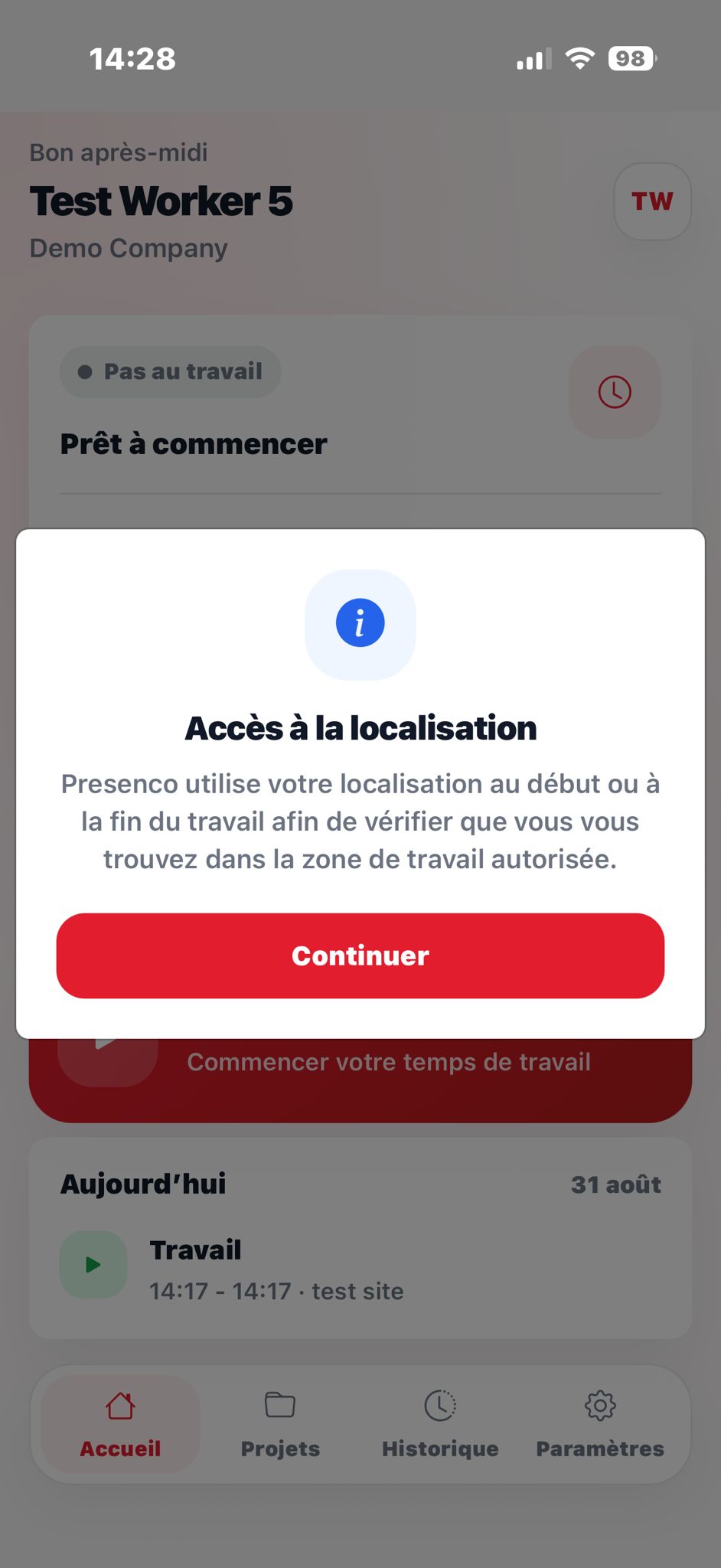
After sign-in, Presenco first displays a short explanation. Tap Continue to open the phone’s system permission request.
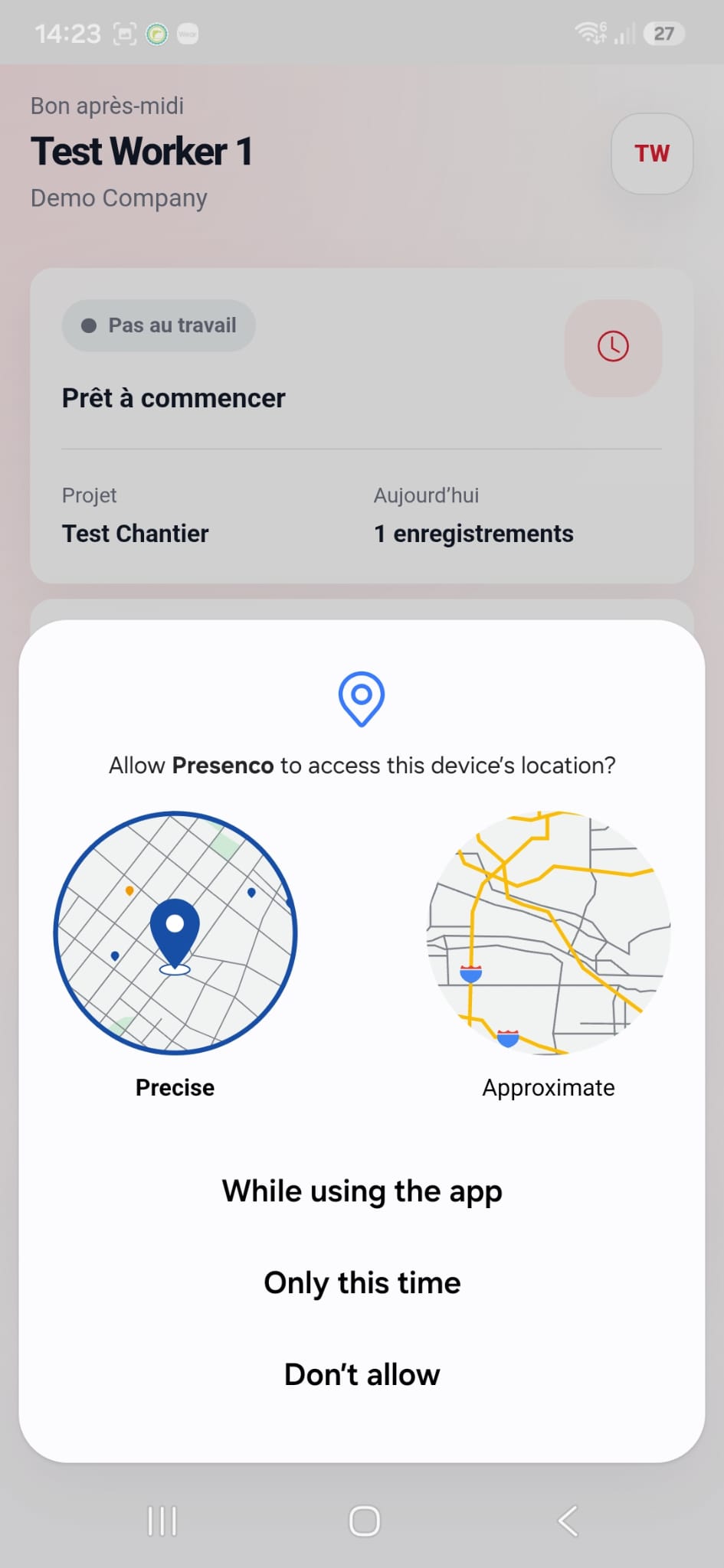
Allow location access on Android
When Android displays the permission request:
- Select While using the app.
- If Android offers approximate and precise location, enable Precise location.
- Do not select Only this time, because Android may request permission again during a later use.
The exact button labels may vary slightly depending on the phone manufacturer and Android version.
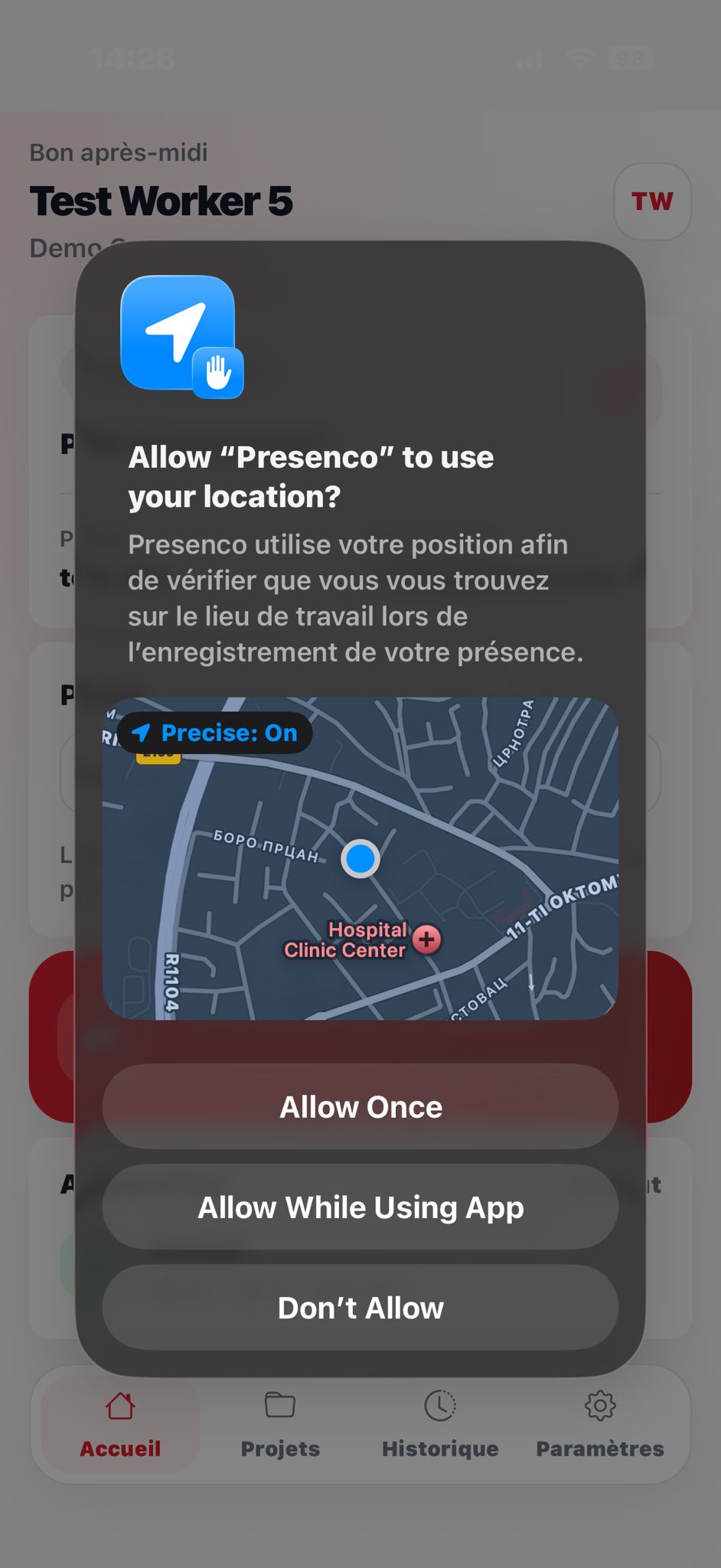
Allow location access on iPhone
When iOS displays the permission request:
- Select Allow While Using App.
- Keep Precise Location enabled so Presenco can correctly verify the project site.
- Do not select Allow Once, because that permission is temporary.
Presenco does not require Always access to record attendance.
If you denied permission
Presenco will offer to open the app settings.
Android
Open Settings → Apps → Presenco → Permissions → Location, select Allow only while using the app, and enable precise location if available.
iPhone
Open Settings → Presenco → Location, select While Using the App, and enable Precise Location.
Return to Presenco and try the attendance action again.
Tip: also enable the phone’s main location service. Correct app permission is not enough when device location is switched off.
Common problems
- Incorrect phone number or PIN: ask the administrator to verify your profile or reset your PIN.
- Location unavailable: enable GPS, move outdoors if the signal is weak, and try again.
- Outside the allowed area: check that you selected the correct project and are at the work site.
- Permission is still denied: open the phone settings and follow the steps above.